Updates
BetterClipboard updates itself from its GitHub releases, and only when you say so.
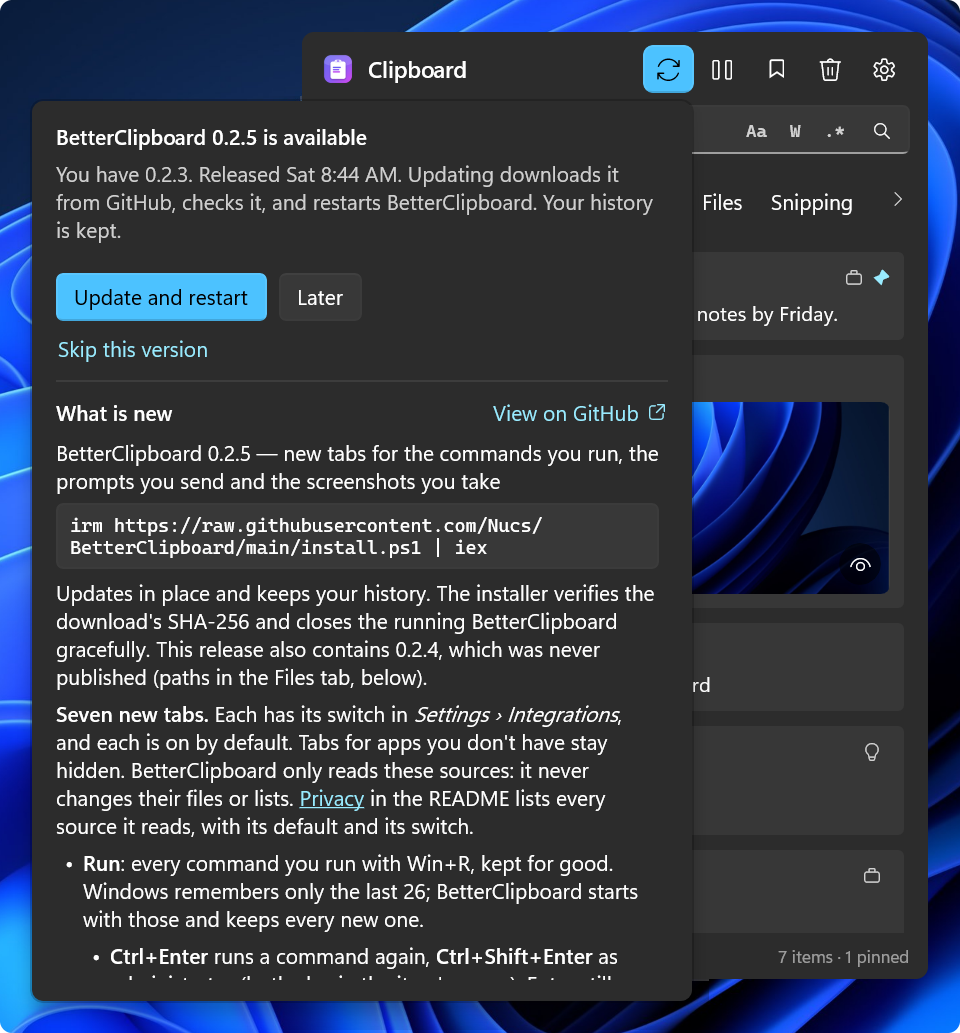
- The update button is in the panel's header, left of Pause. It looks like its neighbors while you have the latest version. When a newer release exists, it is filled with your accent color, and the tray icon's menu gets Update to x.y.z….
- A reminder once a week. While a newer release waits, the button's tooltip — Update available: BetterClipboard x.y.z — opens by itself for a few seconds when you open the panel, at most once in seven days. It opens above the panel, where it covers nothing (beside the button when the panel is at the top of the screen), and it closes by itself: there is nothing to dismiss, and typing goes on as usual. A click on it opens the update dialog. Opening that dialog counts as a reminder too, so Later means a week. There is no reminder while the automatic check is off.
- A click opens the update dialog: the decision on top — Update and restart, Later or Skip this version — and the release notes below it. While you are up to date, it shows what is new in your version, and Check now.
- Nothing is installed without your approval. Update and restart downloads the release for your PC from GitHub
and compares its SHA-256 with the release's
SHA256SUMS.txtand with GitHub's own digest. Then the installer from that release replaces the app's files: BetterClipboard closes and starts again by itself, in the background. Your history, settings and shortcuts stay as they are, and a notification says how it went. - If an update fails, the installed version stays in place and keeps running, and the dialog or a notification says why. A download that does not match its checksum is deleted. An install folder that another program holds open is left as it was.
- The check: once a day (the first time, a minute after it starts), BetterClipboard asks GitHub for the public
list of this project's releases. The request names only the app's version: nothing about you, your PC or your
clipboard is sent (Privacy). Settings › Updates switches the check off, and so does installing with
-NoUpdateCheck. Check now asks once, whatever the switch says. - Skip this version ends the highlight and the weekly reminder for that release. The next release brings both back.
Other kinds of copies: a development build, a copy from the zip, a newer copy, a copy for every user, the Store edition
- A development build (a version such as
0.2.10-dev.12.gabc1234, see Build from source) is offered the builds published to its PC'sdev-buildsfolder first: Dev build available, and Update and restart copies the build from that folder instead of downloading it. Otherwise it is always offered GitHub's latest release, also an older one, as the way back to the official version (Install and restart). It gets no weekly reminder. - A copy you extracted from the release zip updates itself in its own folder, from 0.2.11 on. Update and restart downloads and checks the release as above; then the new version closes BetterClipboard, replaces the release's files one by one and starts again. Files that are not part of the release (your own, if the folder holds any) stay as they are, and if one of its files cannot be replaced (another program holds it open), every file goes back as it was. A copy in a folder you may not change, such as Program Files without administrator rights, gets the download page and the install command instead.
- A newer copy takes over. Start a newer BetterClipboard while an older one runs (a new release extracted into a new folder, say), and the older one closes and the newer one carries on, instead of the older one's Settings coming up. If Start with Windows starts an older copy, or one that is no longer there, it moves to the copy you run; an entry you turned off in Windows' startup apps stays off.
- A copy installed for every user neither replaces itself nor checks by itself: only an administrator may change its folder. Check now still asks, and the dialog copies the command to run in PowerShell as administrator (For every user of a PC).
- The Microsoft Store edition has no update button and asks GitHub nothing: the Store updates it, and Settings › Updates from the Microsoft Store opens its Store page.