Use
Press Win+V. The panel appears at once by your text cursor, in the tab you used last, with the search box focused — just type. It opens on your newest copy, at the top and selected, so Enter pastes it. Your pinned items are listed above it, out of view: scroll up or press ↑ to see them (Settings › Pasting can list them in time order instead). A search or a group starts at the top, its pinned items in view.
Settings › Shortcut › Panel position opens it next to the mouse instead, or in the middle of a screen: the main one, or the one you are typing on (with several monitors, the screen with the window you were in; after a click on the desktop, the screen with the mouse).
The pin in the panel's header keeps it open after pasting: click item after item, and each goes into the app you were last in. It stays pinned, also after a restart, until you click it again. Esc still closes the panel, and Win+V brings a pinned panel back to the front where it is.
| Key | Action |
|---|---|
| type | Search (substring, case-insensitive, Hebrew/CJK/emoji included) |
| Alt+C / Alt+W / Alt+E | Toggle the search box's Aa (match case), W (whole word) and .* (regular expression) — or click them. They stay as you leave them. |
| ↑ ↓ PgUp PgDn | Move the selection. The panel opens on your newest copy, so ↑ goes first to the pinned items above it, the lowest one first. With the groups column open, press ↑ on the top item to step into the groups (see Groups). |
| Space / Enter in the groups column | While the arrow keys are in the groups column: keep the group under the ring and go back to the items. While several groups are open: add the group under the ring to the list, or take it out (see Groups). Everywhere else, Space is typed and Enter pastes. |
| ← → | Previous / next tab, in a circle: ← on the first tab goes to the last tab, → on the last tab to the first. While you edit search text, they move its caret instead; after ↑ or ↓ they switch tabs again. A held key stops at the first or last tab. |
| Mouse over an item | Select it. Tabs and group icons are only selected by a click. |
| Enter / click | Paste into the app you came from |
| Shift+Enter | Paste as plain text |
| Ctrl+Enter | On a command you ran with Win+R: run it again (Ctrl+Shift+Enter: as administrator) |
| Ctrl+1 … Ctrl+9 | Paste the n-th item |
| Ctrl+P | Pin / unpin (pinned items ignore retention and "clear") |
| Del (or Shift+Del while searching) | Delete the item. In the Pwsh, Cmd and Everything tabs, hide the command or file until you use it again. In the Claude and Codex tabs, delete the prompt until you send it again. |
| Ctrl+F | Back to the search box |
| Ctrl+G | Show / hide the groups column (same as the bookmark button) |
| F3 | View the selected item: all of its text in the text viewer, or a picture in the image viewer (see Text previews) |
| Menu / Shift+F10 / right-click | Item menu: paste, paste as plain text, copy only, view (F3), pin, groups (add / remove), open link / show in Explorer / show in Everything, run (Win+R commands), a picture's file (copy path, copy image as a file, open file, open folder) and Save to temp and (see Pictures and their files), delete, forget forever |
| Right-click a tab (or Menu on a tab you clicked) | Tab menu: Move left, Move right, Hide tab, Hide tab & clipboard rows, Show all hidden. A right-click on the tabs' empty space offers Show all hidden too (see Tabs). |
| Esc | Clear the search, then close — focus returns to where you were |
| Drag any empty spot | Move the panel, like dragging a title bar (Esc while dragging puts it back). It opens where Panel position says again next time. |
| Drag an edge | Resize the panel. It opens at that size from then on. |
| Wheel or drag over the tabs | Scroll the tabs sideways when they don't fit, or click the ‹ › arrows at their ends |
| Rest the mouse on an image | See it full size; its eye button opens a zoom viewer (see Image previews) |
| Rest the mouse on a long text | Read all of it and scroll it with the wheel (moving the mouse closes it); right-click it to copy it or for the item's menu; its eye button opens the text viewer, which stays (see Text previews) |
| The pin, left of the update button | Keep the panel open after pasting, to paste one item after another; click it again to unpin |
| The update button, left of Pause | Open the update dialog: the release notes, and Update and restart when a newer version exists (the button is highlighted then; see Updates) |
Type and press Enter as fast as you like: Enter waits for the search to finish and pastes its best match — the newest one that is not pinned, when pinned matches are listed above it.
Pasting into a window that runs as administrator (an elevated terminal, say): Windows does not let an app that runs without administrator rights type into it. BetterClipboard puts the item on the clipboard, goes back to that window, and tells you once (a notification) to press Ctrl+V yourself. The shortcut itself works over such windows when Win+V is released from Explorer (the installer's default).
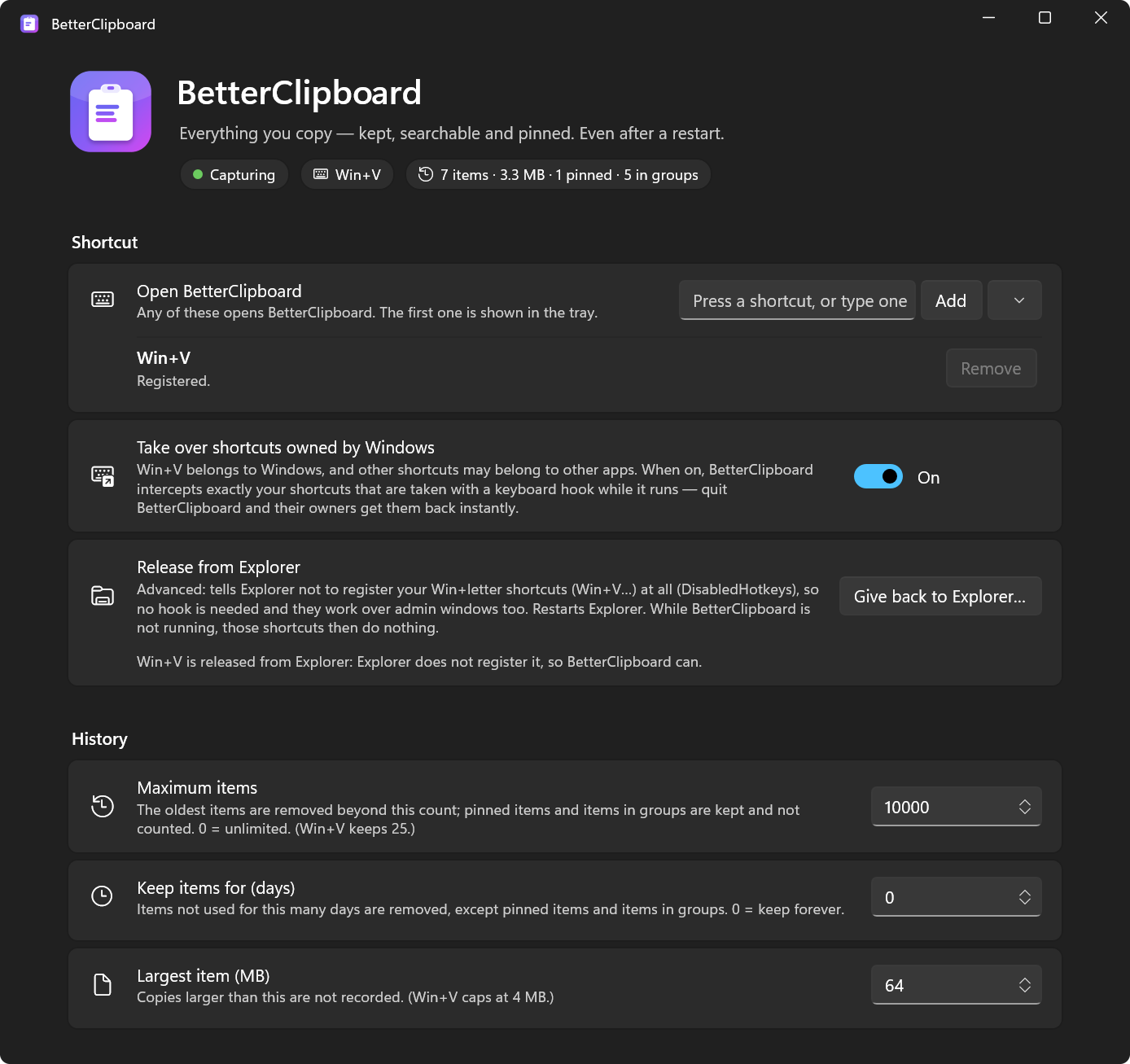
The tray icon opens the panel and Settings. The search box at the top of Settings (Ctrl+F) filters the page as you type, typos included; Esc clears it. Its sections:
- Shortcut: the keys that open the panel (add as many as you like: click the box and press them, or pick one from its menu of suggestions and shortcuts used before), where the panel opens (next to the text cursor, next to the mouse, in the middle of the main screen, or in the middle of the screen you are typing on), which buttons its header shows (all but Settings can be hidden), how many lines of text each card shows (1 to 40), and releasing Win+letter shortcuts from Explorer (Choosing shortcuts).
- History: how many items, for how many days, how large, what to record, and how long Save to temp and's pictures are kept.
- Pasting: paste after choosing, move pasted items to the top, pinned items first.
- Privacy: pause, ignored apps, Forgotten forever, capture reliability, clear history.
- Windows clipboard: Windows' own history, and Import from Windows, which pulls in everything Win+V still remembers — including its pinned items.
- Integrations: one switch for each tab of another app, two for Notepad++ (its unsaved tabs, and the files you open in it), and on each card Delete stored…: a dialog that lists what BetterClipboard kept from that source, part by part with counts, sizes and the newest examples, and deletes the parts you tick — optionally turning the switch off first (see Tabs for other apps).
- App: the interface language (Windows' or one you pick; Restart now next to the list applies it), start with Windows (for you alone, also when BetterClipboard was installed for every user), theme, the command line, the data folder.
- Updates: the switch for the daily check, Check now, and the update dialog (Updates).
- Third party: the apps BetterClipboard works with and the components it is built with, with their official links.
Memory goes back after each use. A little while after you put the panel away or close Settings, BetterClipboard frees the memory it no longer needs; what the panel itself needs stays, so the next Win+V does not wait for it. Settings also leaves memory behind that only a new process returns (about 80 to 100 MB), so a few seconds after you close it, once the panel is closed and keyboard and mouse have paused, BetterClipboard quietly replaces itself with a fresh copy. Nothing opens or flickers, and the pointer does not change: the tray icon stays where it is, the shortcuts keep working (one pressed in that second opens the panel a moment later), and a copy made meanwhile is recorded.